Showing posts with label journal. Show all posts

Monday, March 28, 2016

Digital Scrapbook: Ireland, Wales, and England


Last spring break (March 2015), I had the opportunity to travel to Ireland, Wales, and England as a group leader to six teenagers. It was a unique and rewarding experience and one I won't soon forget. When we returned, I spent the next few months working on a digital scrapbook commemorating the trip.

I used Book Creator for iPad, which is one of my favorite apps for creating books outside of iBook Author. In my opinion, the $4.99 price tag for Book Creator is money well spent. I find that I turn to it for projects I want to quickly put together. The app allows you to add audio and video to your book and has a feature that turns your book into a video.

In Ireland, Wales, and England, I documented the daily activities on the tour as well as the sites we visited to create a visual narrative that includes pictures, videos, and short descriptions. The first video (playlist) was created using an iMovie trailer theme:


A few of the videos were created using a variety of video editing apps, including Drop 'N' Roll, Replay, Vont, and Fliptastic. Photographs were edited using the Martha Stewart Craft Studio and Photo Tangler. At some of the sites we visited, I was quite the shutterbug and took an absurd amount of pictures. Instead of having page after page of boring pictures, I turned them into a short video. Here is an example from my visit to the Archaeology and History Museum in Dublin, Ireland:


Mixed with the photographs are screen shots of some of my social media posts from the trip. Modern technology allows for easy communication with people back home. The first time I traveled outside of the country, the Internet was a new thing and mass emails was the easiest way to stay connected. Today with Facebook, Twitter, and Instagram, staying connected is in real time. I can check-in at Buckingham Palace in London and friends and family back home (if they're awake) know immediately. It was fun to include the posts in the photographic narrative:


Once I had all of the pictures and photographs in place, I was ready to turn the scrapbook into a video. To create a video, click on the share icon and then on "Export as Video," which will save the video to your camera roll.


When the video is uploaded to the camera roll, I then opened it in iMovie and did some more editing to it. One of the main bits of editing I did was to add audio to dull areas in the video. These were mainly the portions of the video that showed photographs lying flat on a page. A great source for free music that can be shared in videos for free can be found at the YouTube Audio Library. They have a variety of different music that can be searched by mood, genre, length, etc. It is a great source if you're on a budget. The video also plays the short videos that were added to the book, but they were small on the screen. In a book, this would not be a problem because a video can easily go to full screen. In the video, however, it was just too small. I simply deleted the sections showing the short videos and inserted the original footage into the timeline, using transitions as a clean segway in between scenes.


I'm still using DVDs for movies so, of course, I had to burn a copy to a DVD and make a matching cover. To burn to a DVD, I used DVD Creator Pro Burn Video ($14.99) for Mac, which is a simple and intuitive software that lets you add background pictures as well as audio. To create the cover and the sticker for the DVD I used Pages. 


Book download

When I began this project, I had no intentions of turning the scrapbook into an .epub that can be viewed on my iPad, but I have changed my mind. Had I originally intended to create an electronic book, I would have created it using iBook Author instead because of the massive size of the files. With iBook Author, you can decrease the size of your book by using the YouTube widget instead of uploading individual videos. On the Book Creator app, the size of my final book is 2530 MB. Crazy, huh? Perhaps one day soon some genius will figure out how to have a media rich book without ending up with an incredibly large file. Until then, I will have to make due with many volumes to the work.

To download a copy of the scrapbook, click on the link to the volume you wish to see. If you are using your iPad, simply click on the "Open in" tab and open the document in iBooks or your favorite .epub reader. If you are on your Mac, click to download the file and save it to your computer. Then click on the file and it will open automatically in iBooks. 

Please note: these files cannot be read on a Kindle. You must either have iBooks or an .epub reader to view.

Vol. 1: The introduction and first two days in Ireland, including a visit to Adare and Killarney.

Vol. 2: Finishes the second day in Ireland and continues into the third day, which includes a tour of the town of Killarney and the beginning of the Ring of Kerry with a stop to see the Atlantic Ocean at Dimple Peninsula.

Vol. 3: Continues along the Ring of Kerry, highlighting the sheepdog demonstration and a stop at Sneem.

Vol. 4: Continues along the Ring of Kerry with stops at the Kerry Bog Village and the Ladies' View.

Vol. 5: Begins day four at Blarney Castle, Cashel Rock, and Dublin.

Vol. 6: Begins day five with a look at St. Patrick's Cathedral (a short book with only 15 pages because of the size of the video of St. Patrick's).

Vol. 7: Finishes day five with an exploration of Dublin, including Trinity College. Day six begins with a ferry ride across the Irish Sea to Wales and the beautiful Beaumaris Castle.

Vol. 8: Begins day seven at Stratford-Upon-Avon (a short book with only 13 pages because of the size of the video of Stratford-Upon-Avon).

Vol. 9: Continues day seven with a stop at Oxford before continuing on to London (another short book with only 11 pages because of the size of the video).

Vol. 10: Finishes day seven in London (small book with 11 pages because of the size of the video).

Vol. 11: The final volume covering day eight with more sites of London (one video removed because it was too long to allow the file to upload from Book Creator). This volume includes Buckingham Palace, a stop in Windsor, and a concluding video.

I hope these volumes leave you inspired and ready to create your own digital scrapbook!

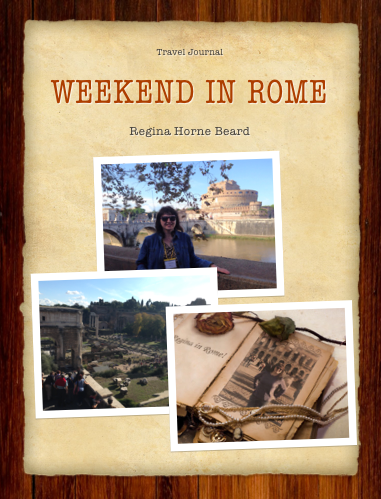
A few months before going to Ireland, Wales, and England, I went to Rome. When I returned, I created a digital scrapbook using iBook Author on my Mac. To check out step-by-step how I created Weekend in Rome, click on this link.

Another way to commemorate a trip or event is to make a memory quilt. You can check out mine at I Tried That Crafter blog.

Sunday, December 7, 2014

Interactive Scrapbooking and Travel Journals

Recently I experienced my first trip to Rome, Italy. It was a whirlwind weekend of sightseeing, food, and fun. As you may know from previous blog posts, I am completely obsessed with history and mythology. Being able to see Rome firsthand was an incredible opportunity for me. After returning home and reflecting over the experience, I decided to create an interactive travel journal. While growing up, I often put together scrapbooks and journals and continued the trend in adulthood, except now I use a computer instead of construction paper. Since my conversion to Apple products, I have created an iBook for all my interest. With the variety of interactive features, I can create some memorable and entertaining books for my iPad, including my most recent addition, Weekend in Rome.

Since Weekend in Rome is a travel journal, I wrote the chapters first. Like everything else I write, I edited and proofread and let others look over the chapters until I was satisfied with the narrative. Next, I chose the pictures I wanted to use for the book. I knew this was going to be a media rich presentation with pictures and videos, so I took over a thousand pictures and forty videos while I was there. No kidding. I seriously took over a thousand pictures. Always, always take a bunch of pictures. It does take many pictures before you are able to get the really good shots. Once you are organized, then choose what format and template you are going to use for the book. At the App store on your iPad there are several apps on the market that can be used to create different kinds of books. My favorite one to use is Book Creator. There is a free version, but it is certainly worth the $4.99 to upgrade. If you want something a little more sophisticated like I did, then you can use a template from iBook Author, which has many to choose from and includes a handful that are free. The one I chose, called "Travel Book," can be found on iBook Author's website for $19.99. It was easy to use and had several different matching designs that worked great for the vision I had for this project.

As soon as I decided on which designs I wanted to use, I then copy and pasted the text into the book. After the text was in place, it was easy to insert the pictures and the videos where they enhanced the narrative. I wanted the introduction media at the beginning of the book to be memorable, fun, and short, so I used a trailer template on iMovie, using various pictures and videos from the trip that were my favorites. I also changed the setting so that when someone opens Weekend in Rome for the first time, the video will automatically begin playing. The iBooks in my library that automatically play the introduction video (and do it well) are the ones that are my favorite because the media pulls you immediately into the book and the story. It is as if your imagination is ready to be off and running. My only problem with the video is the typo I found after deleting the project from my iPad. It is a good example of how you cannot proofread enough.


I also had some .pdf documents I wanted to include in the book, so I used a .pdf widget from Bookry.com, which is a website that has many free widgets to choose from including Google maps, forms, galleries, and more. A helpful widget that can keep your iBook at a reasonable size is the YouTube widget. Adding media to an iBook can make the project huge. If that is a concern, then you should definitely upload your videos to YouTube and use the widget instead of dropping your videos into the iBook. After you choose the widget you want to use, you can personalize the widget online. When the widget is ready to be used, simply download the file to your computer and then drop it into the iBook. To make the widget more appealing, I dropped a .jpeg (in this case, it was the EF Tours logo) onto the widget in the iBook. The beauty of widgets on Bookry.com is that if I change anything in my account online, the widget in the iBook will also change once it's been updated.


Another element I wanted to include were some of the posts I made while in Rome from my favorite social networks. I enjoy using social media and I use it heavily - perhaps too heavily for the tastes of my friends and family. I think that popular social media like Facebook, Instagram, and Twitter tell the modern story of humanity, and there is something truly beautiful about first person accounts of every day lives. I took a few screen shots and dropped the pictures of the posts into the iBook and adjusted the setting on the pictures for them to go into full view when they have been clicked. The example below is a post I made to Facebook about the Pantheon:


Whenever I completed my scrapbook, I clicked on "File" along the top of the menu bar and then "Export." Then click on "iBooks" (unless you would rather download it as a .pdf or text document, but none of the interactive features will work in those formats). Since Weekend in Rome is a travel journal with private reflections, I saved the file to my computer instead of the iTunes store. If you want to make the iBook public and publish to the iTunes store, then click on the "Publish" button along the top menu and follow the instructions. Sorry, you will not be able to get your hands on this edition of Weekend in Rome, but you can easily create your own book of treasured memories. It's definitely worth the time and effort. Below is a short video preview of the finished book just to give you some ideas and a creative boost: